In this step of the tutorial you first add more content to the HomePage Host node to learn how Page Host nodes handle navigation of their subpage nodes, then you create the application Settings in a popup window.
Add content to the HomePage Host node
In this section you convert the HomePage node to a Page Host node and add two more Page nodes to the Home application.
Page Host nodes keep track of the currently active Page or Page Host node within their scope. When you activate a Page Host node, that Page Host node automatically activates the currently active Page or Page Host node in its scope. In other words the Page Host node remembers and restores its state during activation to the state before it was deactivated.
To add content to the HomePage node:
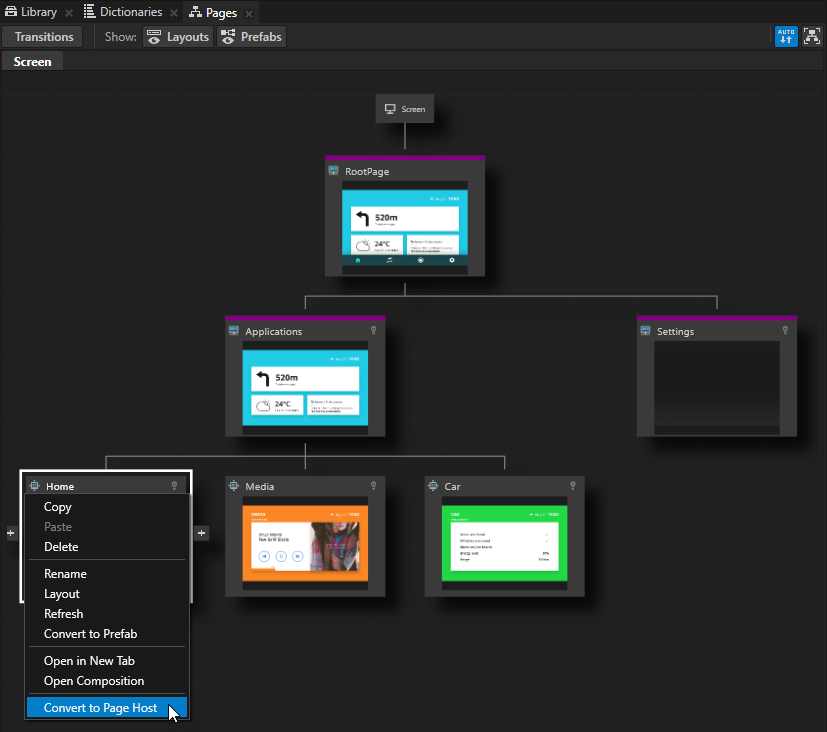
In the Pages right-click the HomePage node and select Convert to Page Host.
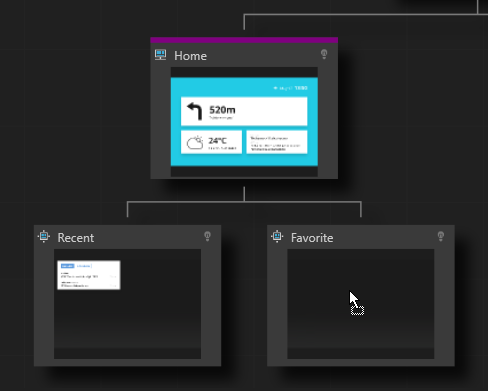
In the Pages at the bottom of the HomePage Host node click twice to create two child Page nodes under the HomePage Host node, and name them Recent and Favorite.
From the Assets to the Pages window drag and drop:
Recent texture to the RecentPage node
Favorite texture to the FavoritePage node
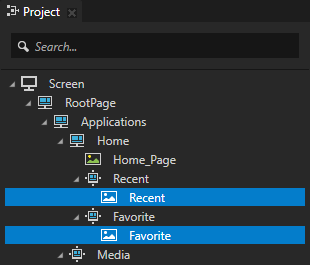
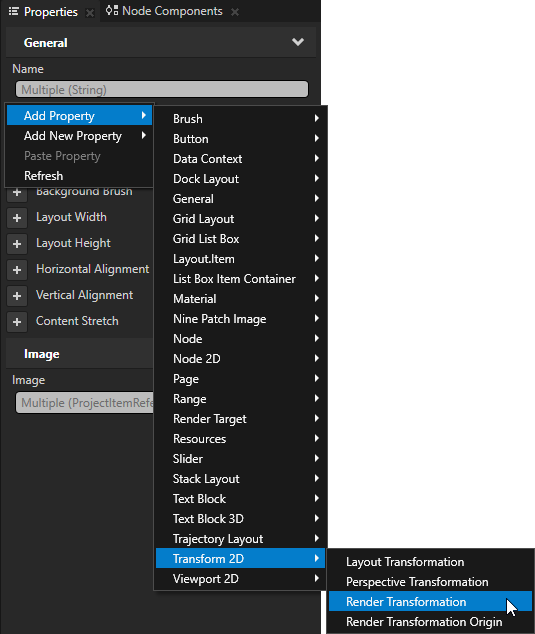
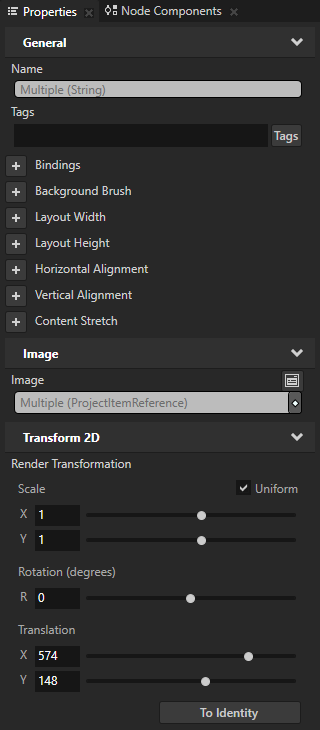
In the Project select the Recent and FavoriteImage nodes, in the Properties add the Render Transformation property, and set the Render TransformationTranslation property fields to position the Image nodes in the application user interface next to the directions information:
X to 574
Y to 148
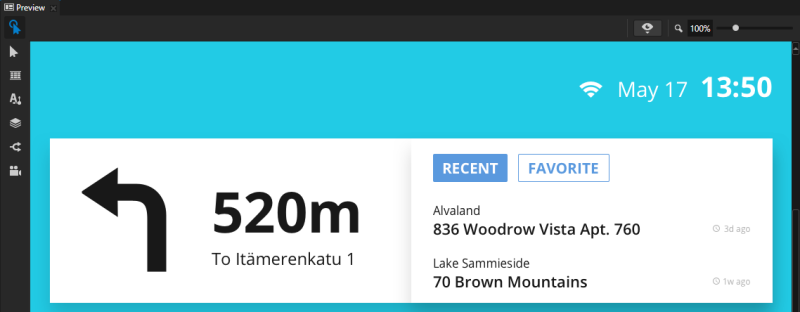
When you select the Recent and FavoritePage nodes in the Pages you see their content in the Preview.
Create the navigation for the Recent and FavoritePage nodes
In this section you create the navigation buttons so that you can navigate between the Recent and FavoritePage nodes in the HomePage Host node.
To create the navigation for the Recent and FavoritePage nodes:
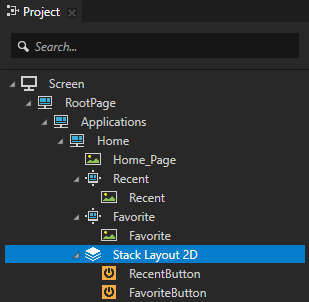
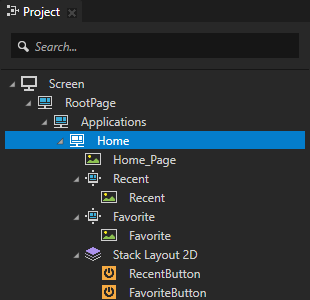
In the Projectpress Alt and right-click the HomePage Host node, select Stack Layout 2D, inside it create two Button 2D nodes, and name them RecentButton and FavoriteButton.
In the Pages click the RecentPage node so that Kanzi transitions to it, in the Project select the Stack Layout 2D node and in the Preview use the Node tool to position the Stack Layout 2D node so that it is aligned with the top-left corner of the Recent button. Tip If you do not set the size of a Stack Layout 2D node, the size of its child nodes determines the size of the node.
In the Project select the Stack Layout 2D > RecentButton node and use the Node tool to resize and place it above the Recent button in the user interface.
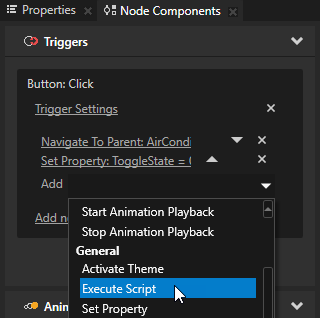
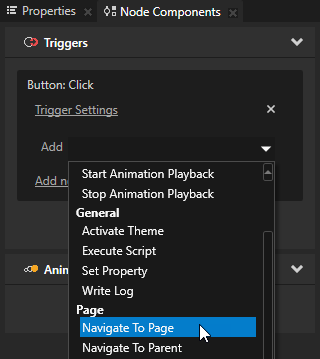
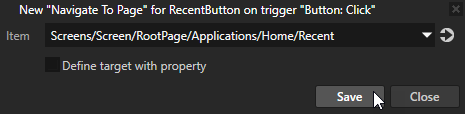
In Project select the RecentButton node, in the Node Components > Triggers section in the Button: Click trigger click the Add dropdown menu, select the Navigate to Page action, and select the RecentPage node.
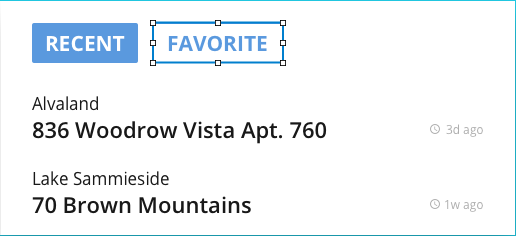
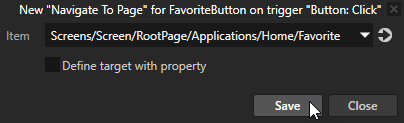
Repeat the previous two steps for the FavoriteButton node, but place the Button 2D node above the Favorite button in the user interface, and set the Navigate to Page action to the FavoritePage node.
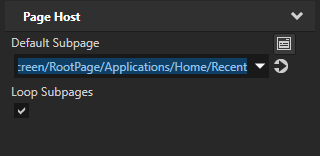
In the Project select the HomePage Host node and in the Properties set the Default Subpage property to Recent. With this Default Subpage property setting and the Default Subpage property settings you made in the previous step, when you start the application Kanzi activates the Applications > Home > RecentPage node.
In the Preview click to enter the Interact mode.
When you click the RecentButton and FavoriteButton in the Preview you go to the Recent and FavoritePage nodes.
Show the Settings node in a popup window
In this section you add structure to the Settings node and set it up so that it is shown on top of the Home, Media, and Car applications.
If you always want to show the content of a Page or a Page Host node in a popup window on top of all the other content in your application, you have to place that Page or Page Host node as the last node in the scene graph so that Kanzi always renders it on top of everything.
To show the SettingsPage node in a popup window:
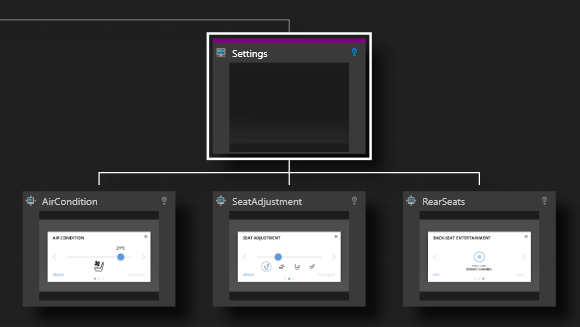
In the Pages in the top-right corner of the SettingsPage Host node click to enable the Keep Active property. When you enable the Keep Active property Kanzi activates that Page or Page Host node whenever its parent Page or Page Host node is active. When a Page or a Page Host node is active its content is shown and you can interact with it. Because the SettingsPage Host node holds content that is shown in the application user interface as a popup window on top of all the other application content, the Settings node itself is empty and shows content from its child Page nodes.
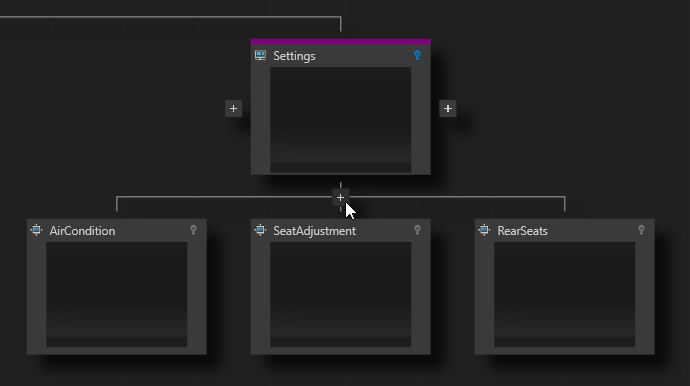
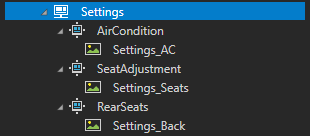
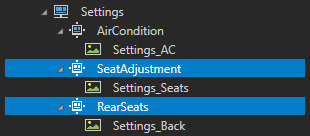
In the Pages at the bottom of the SettingsPage Host node click three times to create three child Page nodes under the SettingsPage Host node, and name them AirCondition, SeatAdjustment, and RearSeats.
From the Assets to the Pages window drag and drop:
Settings_AC texture to the AirConditionPage node
Settings_Seats texture to the SeatAdjustmentPage node
Settings_Back texture to the RearSeatsPage node
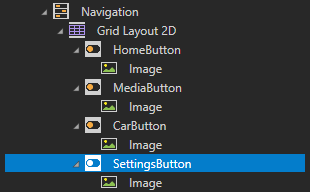
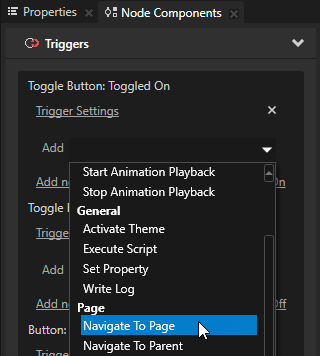
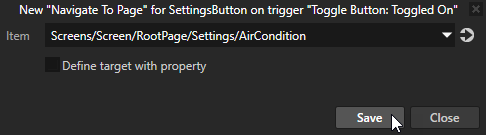
In the Project select the SettingsButtonToggle Button 2D node, in the Node Components > Triggers section in the Toggle Button: Toggled On trigger click the Add dropdown menu, select the Navigate to Page action, and select the AirConditionPage node.
Dim the selected Page node when the Settings popup window is open:
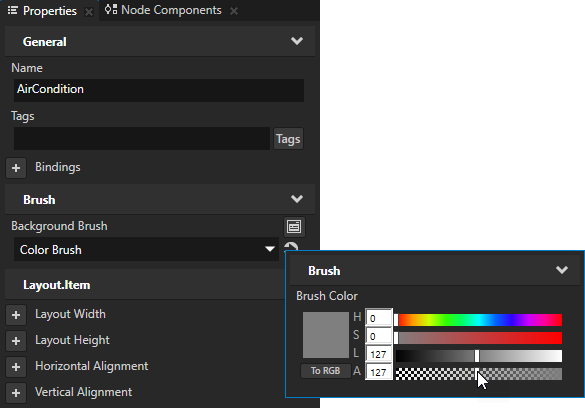
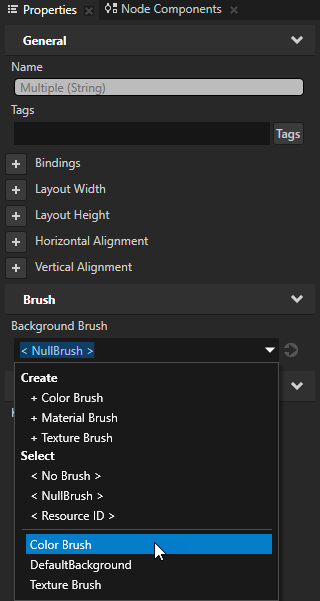
In the Project select the AirConditionPage node, in the Properties add the Background Brush property, select + Color Brush, click next to the property name, and set the Alpha (A) to 127 to make the Color Brush transparent gray.
In the Project select the SeatAdjustment and RearSeatsPage nodes, in the Properties add the Background Brush property, and set it to the Color Brush you created in the previous step.
Create the navigation for the Settings popup window
In this section you create the navigation for the AirCondition, SeatAdjustment, and RearSeatsPage nodes in the Settings popup window. With the navigation you enable the users to navigate between Page nodes in the SettingsPage Host node, and close the popup window.
To create the navigation for the Settings popup window:
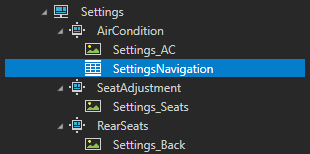
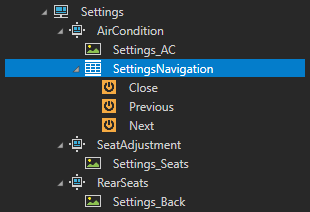
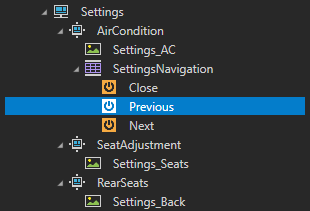
In the Projectpress Alt and right-click the AirConditionPage node, select Grid Layout 2D, and name it SettingsNavigation.
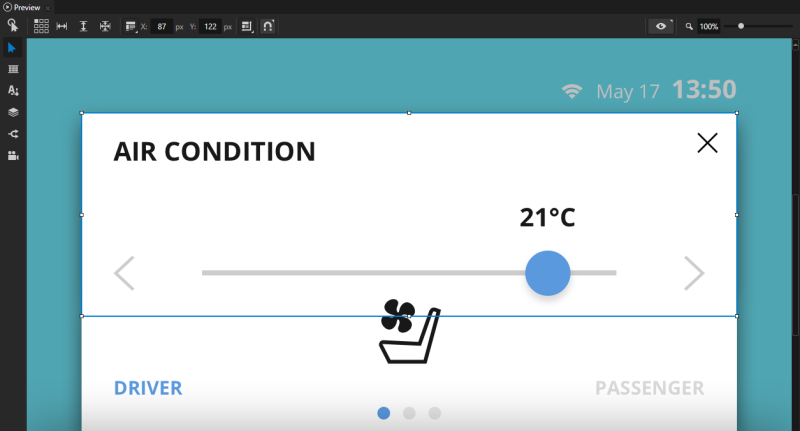
In the Preview use the Node tool to position and resize the SettingsNavigation node so that it covers the close, previous, and next buttons in the Settings_ACImage node.
In the Project select the SettingsNavigation node and in the Properties:
In the Columns and Rows click to remove one column and one row. You need only two columns and two rows in the Grid Layout 2D node. You use the first row and second column for the close button, and both columns in the second row for the previous and next buttons.
Set all columns and rows to Proportional. This way each column and row takes an equal amount of space in the Grid Layout 2D node.
Create the navigation buttons:
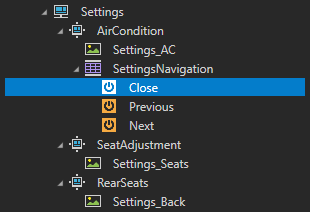
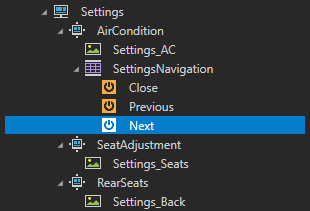
In the Project in the SettingsNavigation node create three Button 2D nodes and name them Close, Previous, and Next.
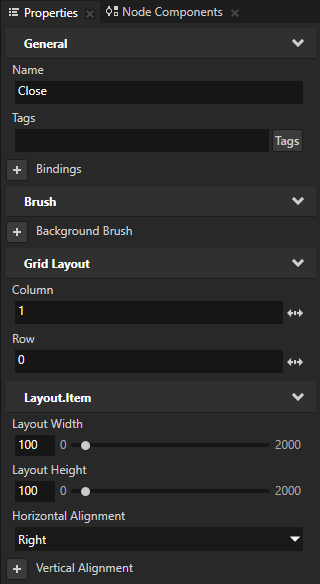
In the Project select the CloseButton 2D node and in the Properties add and set:
Column to 1
Row to 0
Layout Width to 100
Layout Height to 100
Horizontal Alignment to Right
This way you place the CloseButton 2D node in the second column of the first row, set its size, and align it to the right side.
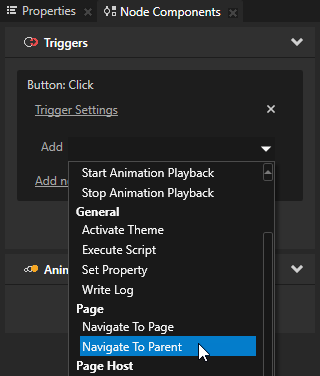
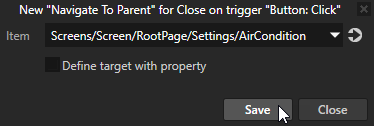
In the Project select the CloseButton 2D node, in the Node Components > Triggers section in the Button: Click trigger click the Add dropdown menu, select the Navigate to Parent action, and select the AirConditionPage node. You select the AirConditionPage node because when the user clicks the Close button, you want the application to navigate to its parent Page node, which is the SettingsPage Host node. Since the Settings node does not contain any content, this action closes the Settings popup window.
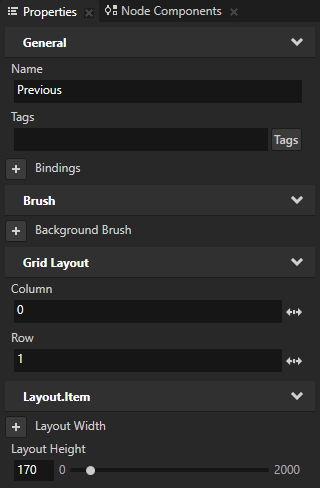
In the Project select the PreviousButton 2D node and in the Properties add and set:
Column to 0
Row to 1
Layout Height to 170
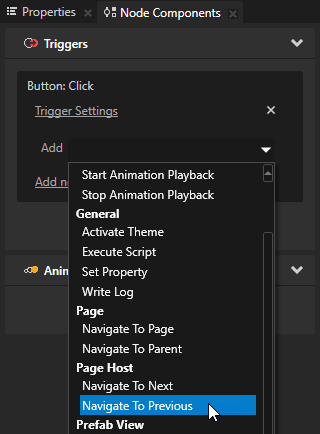
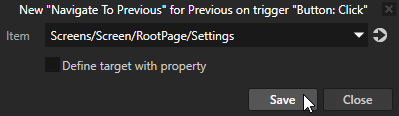
In the Project select the PreviousButton 2D node, in the Node Components > Triggers section in the Button: Click trigger click the Add dropdown menu, select the Navigate to Previous action, and select the SettingsPage Host node. In the Navigate to Next and Navigate to Previous actions you select the parent Page or Page Host node of the node which contains the Page nodes between which you want to navigate.
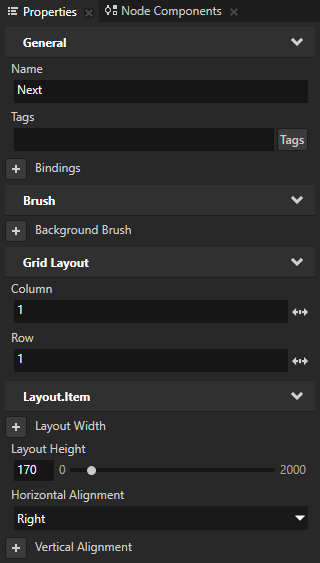
In the Project select the NextButton 2D node and in the Properties add and set:
Column to 1
Row to 1
Layout Height to 170
Horizontal Alignment to Right
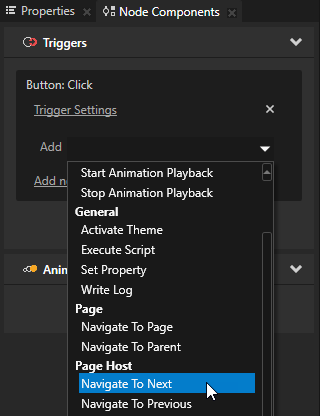
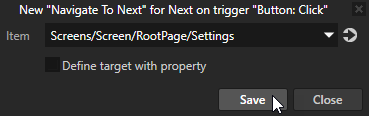
In the Project select the NextButton 2D node, in the Node Components > Triggers section in the Button: Click trigger click the Add dropdown menu, select the Navigate to Next action, and select the SettingsPage Host node.
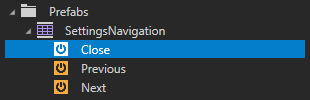
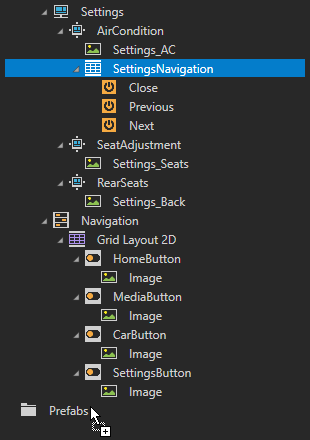
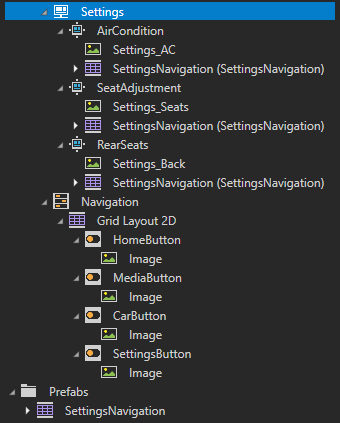
In the Project drag the SettingsNavigation node to the Prefabs. You create a prefab from the SettingsNavigation node so that you can reuse it in the other SettingsPage nodes. When you drop a node into Prefabs, Kanzi Studio creates a prefab template from the node and replaces the original node with an instance of the prefab.
From the Project > Prefabs drag the SettingsNavigation prefab to the SeatAdjustment and RearSeatsPage nodes to add the navigation buttons to those Page nodes.
Highlight the correct button in the application navigation
In this section you use a JavaScript script to check which application the user selected and to highlight the correct button in the application navigation.
To highlight the correct button in the application navigation:
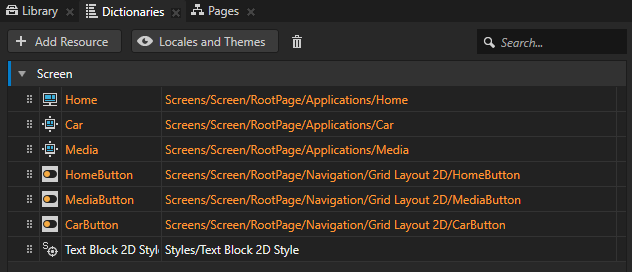
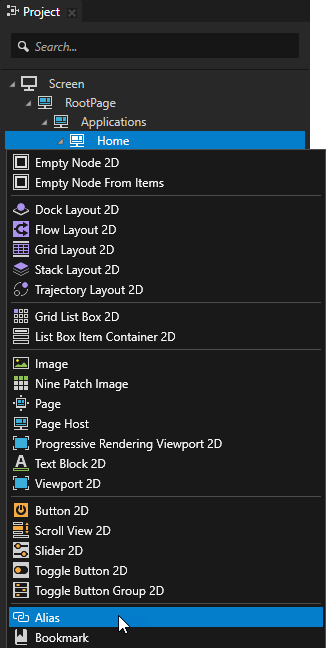
In the Projectpress Alt and right-click the Applications > Home node and select Alias. Kanzi Studio creates an alias pointing to the node from which you created the alias and adds it to the resource dictionary of its nearest ancestor node that contains a resource dictionary. Here you use the alias for easy access to the node in the JavaScript script. Tip You can retrieve alias target nodes with bindings, the Kanzi Engine API, or scripting using the hash sign (#) followed by the name of the alias, regardless of the node location in the project.
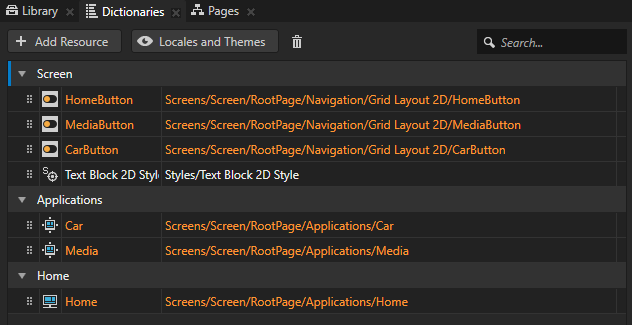
For example, #Home. Tip You can see in the Dictionaries window the list of resources in the resource dictionaries that the node selected in the Project can access.
Repeat the previous step for nodes:
Applications > Media
Applications > Car
Navigation > Grid Layout 2D > HomeButton
Navigation > Grid Layout 2D > MediaButton
Navigation > Grid Layout 2D > CarButton
In the Dictionaries window, drag the Media, Car, and Home aliases to the resource dictionary of the Screen node. To drag a resource from one resource dictionary to another, click next to the resource you want to move, and drag the resource to the resource dictionary where you want to move it. You move the aliases to the resource dictionary of the Screen node to make them accessible to all nodes in your project.
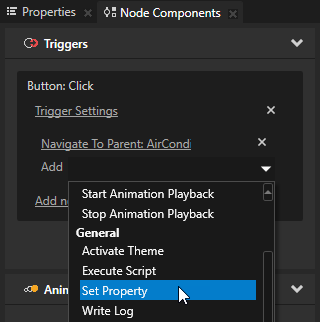
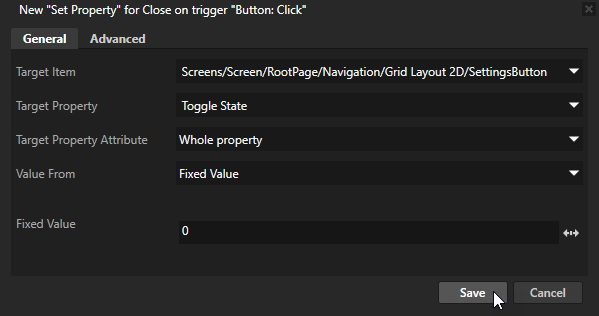
In the Project > Prefabs select the SettingsNavigation > CloseButton 2D node, in the Node Components > Triggers section in the Button: Click trigger click the Add dropdown menu, select the Set Property action, and set:
Target Item to the SettingsButtonToggle Button 2D node
Target Property to Toggle State
Fixed Value to 0
Click Save. With this Set Property action you set the value of the Toggle State property in the SettingsButton to 0 when the user clicks the Close button in the Settings popup window. In the first step of this tutorial you created a state manager for each application button controlled by the Toggle StateController Property. When this action changes the value of the Toggle ButtonController Property, the state manager transitions to the state you defined for that value.
Create the JavaScript script to check which application the user selected:
In the Project > Prefabs select the SettingsNavigation > CloseButton 2D node, in the Node Components > Triggers section in the Button: Click trigger click the Add dropdown menu, select the Execute Script action.
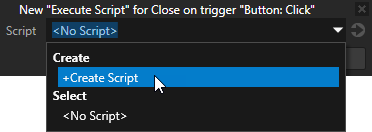
In the Execute Script window select + Create Script to create a new script. The Script Editor window opens.
In the Script Editor enter this script.
// Get the Home Page Host node.
// Access alias target nodes using the # sign followed by the name of the alias.
var homePage = node.lookupNode('#Home');
// Get the Navigation > Grid Layout 2D > Home Button 2D node
var homeButton = node.lookupNode('#HomeButton');
// The value of the Page.State property tells whether the Page or Page Host node is active:
// - If the value is 0, the node is inactive and invisible.
// - If the value is 1, the node is active and visible.
var homeActive = homePage.getProperty('Page.State');

var mediaPage = node.lookupNode('#Media');
var mediaButton = node.lookupNode('#MediaButton');
var mediaActive = mediaPage.getProperty('Page.State');

var carPage = node.lookupNode('#Car');
var carButton = node.lookupNode('#CarButton');
var carActive = carPage.getProperty('Page.State');

// Check which of the application Page nodes is active and set the Toggle State for the button of that application to 1.
// Toggle State Controller Property controls the state of these toggle buttons.
if (homeActive == 1)
{
    homeButton.setProperty('ButtonConcept.ToggleState', 1);
}
else if (mediaActive == 1)
{
    mediaButton.setProperty('ButtonConcept.ToggleState', 1);
}
else if (carActive == 1)
{
    carButton.setProperty('ButtonConcept.ToggleState', 1);
}
In the Script Editor click Save. In the Preview click to enter the Interact mode. Click the buttons in the application you just created to see how the functionality corresponds to the structure you created with the Page and Page Host nodes.
In this tutorial you learned how to create application flow and structure with the Page and Page Host nodes using the Pages tools. To continue learning Kanzi you can:
Learn how to how to define an XML data source and how to use the data from that data source in a Kanzi Studio project to provide the data to a Kanzi application. See Tutorial: Get application data from a data source.
 twice to create two child Page nodes under the Home Page Host node, and name them Recent and Favorite.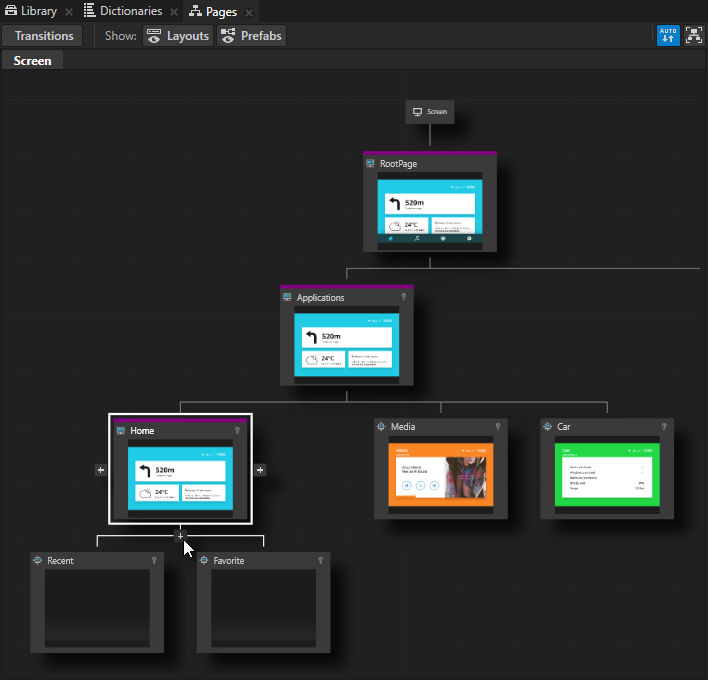
 to position the Stack Layout 2D node so that it is aligned with the top-left corner of the Recent button.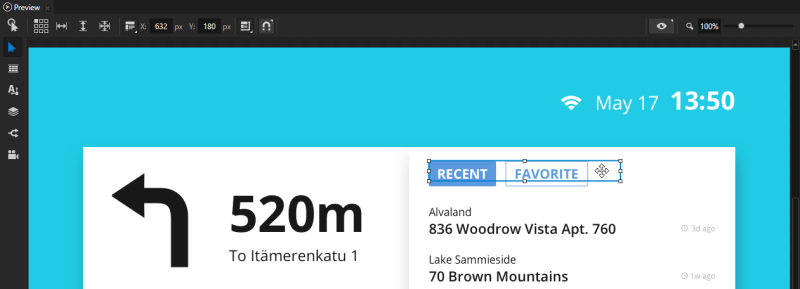
 to enter the Interact mode.
 to enable the Keep Active property.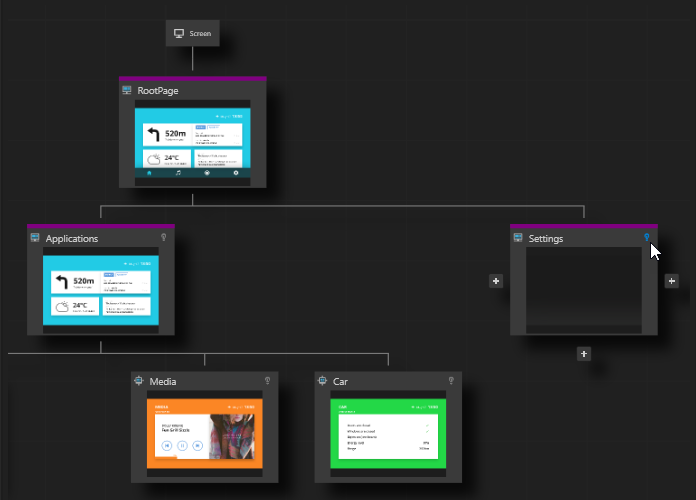
 next to the property name, and set the Alpha (A) to 127 to make the Color Brush transparent gray.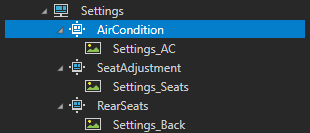
 to remove one column and one row.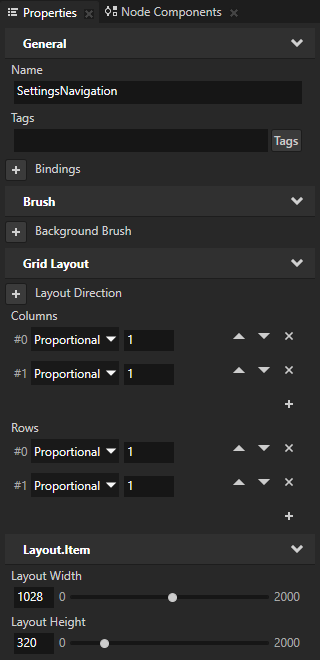
 next to the resource you want to move, and drag the resource to the resource dictionary where you want to move it.